
Coach guides
Prepare for your next opponent
Go from an opponent and the evidence you have to a checked scout packet and bench plan.
For: Coaches preparing the next matchup, with or without Hudl.
Before you start: Know the opponent, game date, and season. Gather available stats and your film observations. Hudl is optional. Report generation depends on your access, available inputs, and service availability.
Download printable guideScreenshots use fictional demo data. Available controls depend on your role and enabled features. Select a screenshot to open it full size.
1. Choose the opponent and add evidence
Start with what you can verify. A report with clear gaps is more useful than one built on the wrong team or sample.
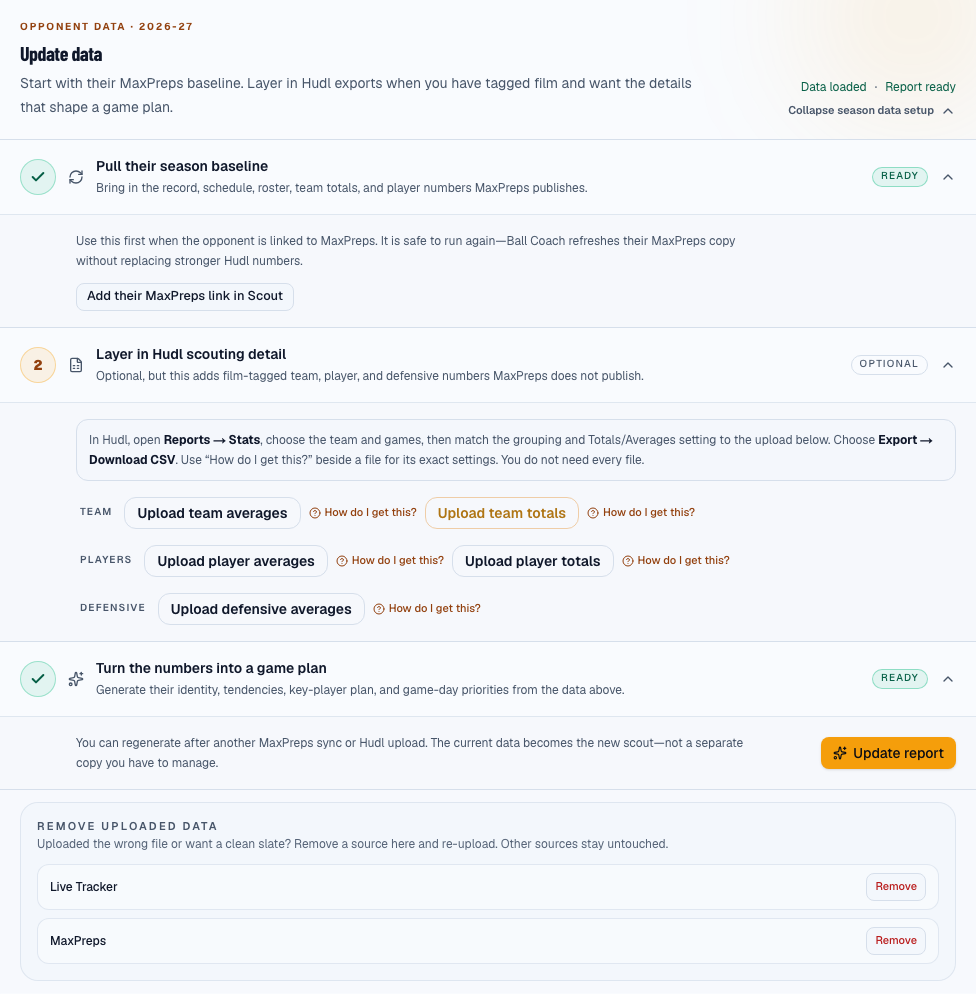
Open the right scout
- Open Scout and search for the opponent. Open its existing card; if it is missing, choose Add opponent and verify the school and team before saving. You can also open a linked opponent scout from the schedule.
- Check the opponent name and your current season. Expand Update data, or use the initial data setup if there is no report yet.
Use the data you have
- Without Hudl: use Sync Stats from MaxPreps when the opponent has a valid link. If the link is missing, follow Add their MaxPreps link in Scout. Check what actually loaded; a sync cannot supply stats the source does not have.
- With Hudl: open Layer in Hudl scouting detail. Start with team averages and player averages for that opponent. Use Help’s Hudl guides for exact export settings and matching upload buttons; keep the team, season, and game sample consistent.
- Game-by-game files add detail when available. Opponent team totals need dated game rows; player game logs need player names and dates. Do not relabel season totals as game logs. Defensive averages mean what this opponent allowed other teams to score.
You’re ready when: The opponent and season are correct, the available stats are visible, and you know which evidence is missing.
2. Turn evidence into your game plan
Use your coaching observations to focus the scout, then check the result before your players or staff rely on it.
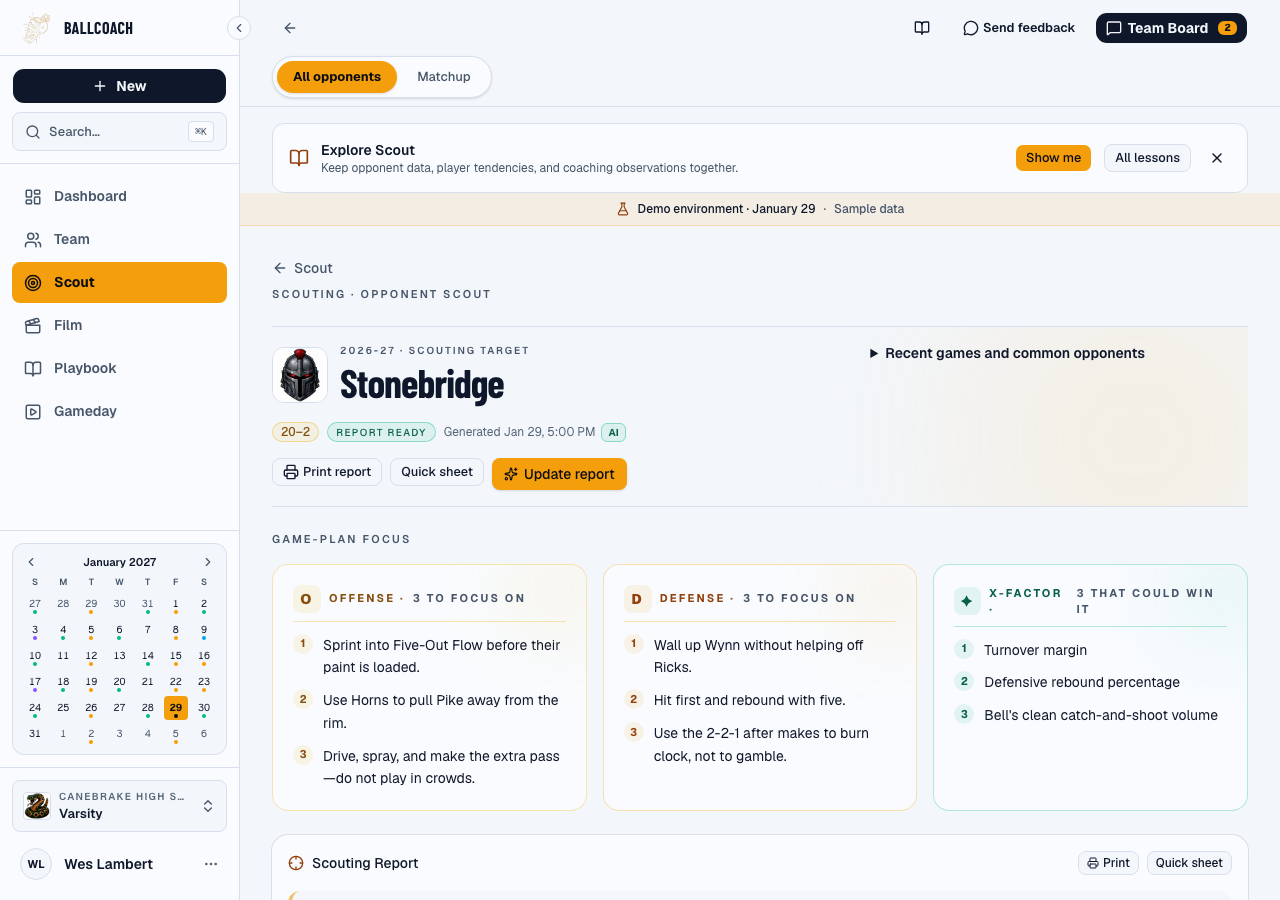
Write observations and update the report
- Use Scout notebook for observations you want the report to consider. Be specific: player number/name, the action, and what you saw. Example: ‘#11 rejects the ball screen to his left; confirm against another game.’ Separate an observation from an unverified hunch.
- Wait for the notebook’s Saved confirmation. Then choose Generate report or Update report after your uploads and observations are ready. Uploading data or saving a note does not refresh the report by itself. Team Board is for staff discussion; it is separate from Scout notebook.
- Read the report: check player identities, sample size, key tendencies, and the proposed priorities against your evidence. Missing stats are unknown, not zero. If generation is unavailable or data is thin, work from the visible stats and your notes; do not present an old report as freshly updated.
Prepare the packet and bench reference
- Use the scout’s print control to preview the packet. Check the opponent, season, and report date before printing or saving through your browser’s print dialog.
- In Team Playbook, use a play card’s actions to Add to call sheet. Open Gameday → Call sheet, choose the opponent, review the pinned plays, add defensive calls, and check the scout reminders before printing.
- Agree on a short set of priorities with your staff: what to take away, how to attack, and the matchups to watch. If new data changes the plan, update the report and reprint the affected materials.
You’re ready when: Another coach can identify the matchup, explain the priorities, and use the checked packet and call sheet without guessing which version is current.
If you get stuck
- I do not have Hudl or the opponent has little public data.
- Use the MaxPreps evidence that is available and your own verified observations. Leave gaps explicit. Do not wait for every file, and do not assume the report can infer missing facts.
- The report still shows old information.
- Confirm the upload succeeded and Scout notebook says Saved, then update the report. Check its date and contents before printing again.
- The call sheet is empty.
- Check the selected opponent and whether your saved plays were added to the call sheet from their actions menu. A play existing in Team Playbook does not automatically pin it.
Still stuck? Reply to your welcome email, or use Send feedback inside Ball Coach with the page, exact message, and what you were trying to do. Do not include passwords or a scoring PIN.