
Coach guides
Run stats on game night
Set up the game, give each scorer a clear job, and finish with a checked box score.
For: Coaches, assistants, and student managers. The coach handles setup and ending the game; managers can use temporary game-only access.
Before you start: Open the game on each device while online before tip. Check rosters, jersey numbers, starting five, period length, battery, and connection. Agree who records each side so the same play is not entered twice.
Download printable guideScreenshots use fictional demo data. Available controls depend on your role and enabled features. Select a screenshot to open it full size.
1. Coach: get the scorer’s table ready
Use one existing game for the whole crew. Watching live stats and recording stats are different jobs.
Check setup before tip
- Open Gameday and choose the scheduled game. Use Record stats or Stat this game to enter scoring. Resume an existing active game instead of creating a duplicate. Watch live stats opens the viewing screen.
- In a new-game setup, verify both teams, game settings, roster, and five starters before Tip off. Choose the opponent tracking detail you can reliably record. Check the period and game clock against the arena clock.
Choose who records what
- For one signed-in scorer, choose Solo: track both teams. For a split crew, agree which device records each side. A coach who is only monitoring should use Watch live stats rather than enter the managers’ plays again.
- For accountless managers, open Gameday’s Manager scoring tool for the active game and choose Create manager access. Give authorized managers the game link or QR code and its separate 4-digit PIN. They do not need your account password.
- Have each manager open the link, confirm the matchup, choose a different scoring lane, enter their name and PIN, and choose Start scoring. Coordinate any lane takeover: it disconnects the person using that lane. If manager access is unavailable, ask the authorized coach to use the signed-in scorer.
You’re ready when: Everyone has the same game, each side has one assigned scorer, and the starting lineups and clock are correct.
2. Manager: player first, then the action
Record only your assigned side. Check the player selection each time the action changes hands.
Record and correct
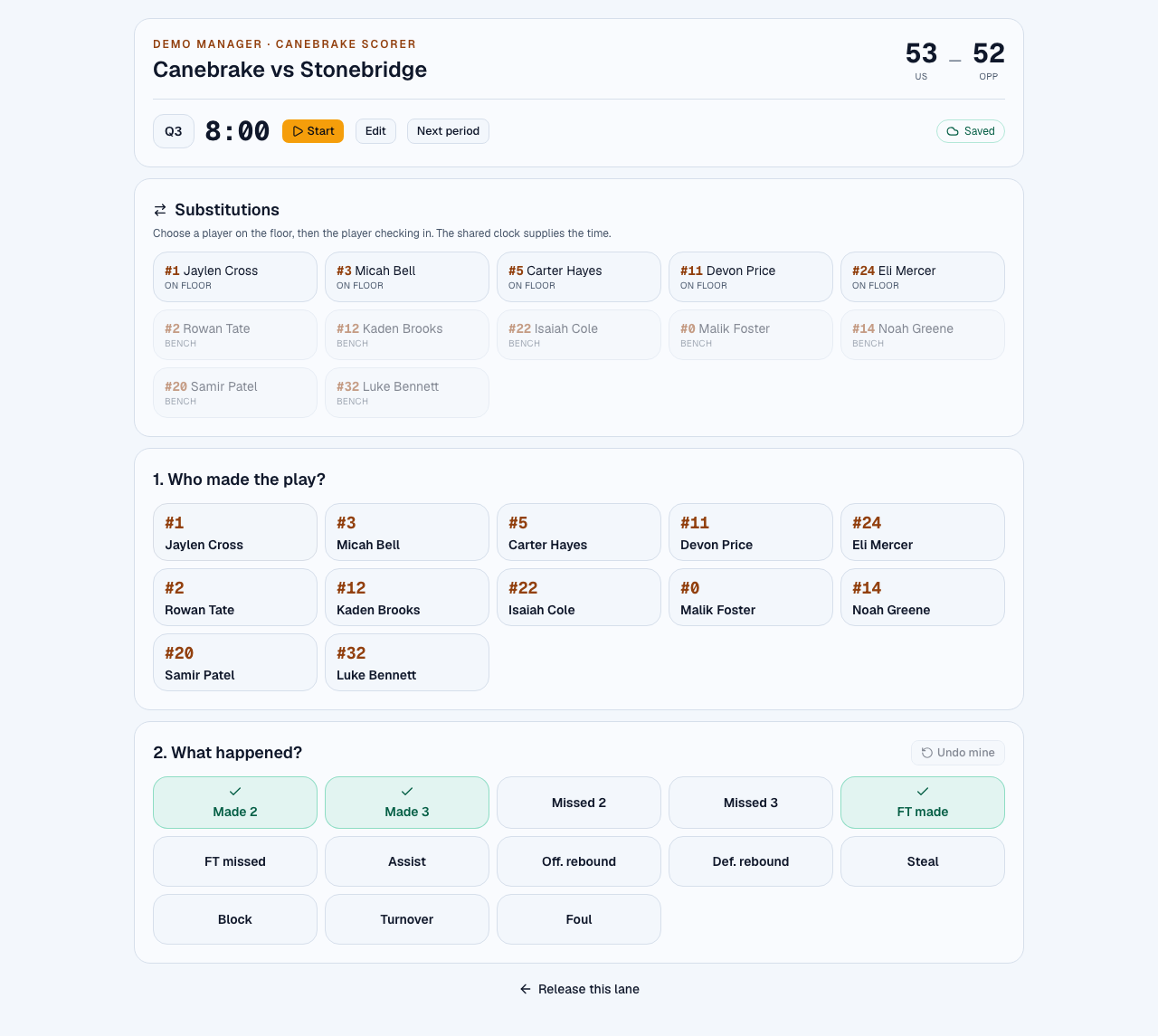
- Choose the player under Who made the play?, then tap the matching action under What happened? Use Made 2/Made 3, Missed 2/Missed 3, FT made/FT missed, and the other labeled stats. A made-shot button already records the make; do not also enter it as a missed attempt.
- Record separate events with the correct players. For a made basket with an assist, record the basket for the scorer, then select the passer and record Assist. In opponent team-total mode, use Opponent team instead of inventing a player.
- If your last entry was wrong, use Undo mine, check the selection, and enter the correct action. Tell the coach about an older error instead of adding an unrelated stat to force the totals to match.
Track substitutions and the clock
- In Substitutions, choose the player on the floor who is leaving, then the player checking in. Confirm the on-floor labels match the game. Opponent substitutions require player-level tracking.
- The Our team manager controls the shared clock: Start/Stop, Edit while stopped, and Next period while stopped. Match the arena clock; it does not sync to the scoreboard automatically. The opponent manager follows that shared clock while connected.
- During a stoppage, compare the score with the arena scoreboard and check Saved status. If you need a different person to score, first let your entries sync, then use Release this lane and coordinate the handoff with the coach.
You’re ready when: The score matches, player selections and substitutions are right, and your device shows Saved while connected.
3. Recover mistakes and finish the game
Both scorers need to finish syncing before the coach ends the game. Keep the original devices available until the result is checked.
If the connection drops
- On an already-open scorer, new events can queue on that device. Saved offline is not confirmation that the server or other scorer has received them. Keep the tab/device available, avoid clearing browser data, and reconnect as soon as possible.
- Devices cannot exchange new clock changes while offline. The Our team manager’s clock remains authoritative; the opponent manager can use Match arena clock when offline to align the local clock and period before recording.
- When service returns, wait for Saved on each device and compare the game again. If the coach tracker shows events not synced, use its export/recovery option and Send feedback with the exact message. Keep the original device; an exported recovery file is not an automatic import.
Coach tracker: record or repair a play
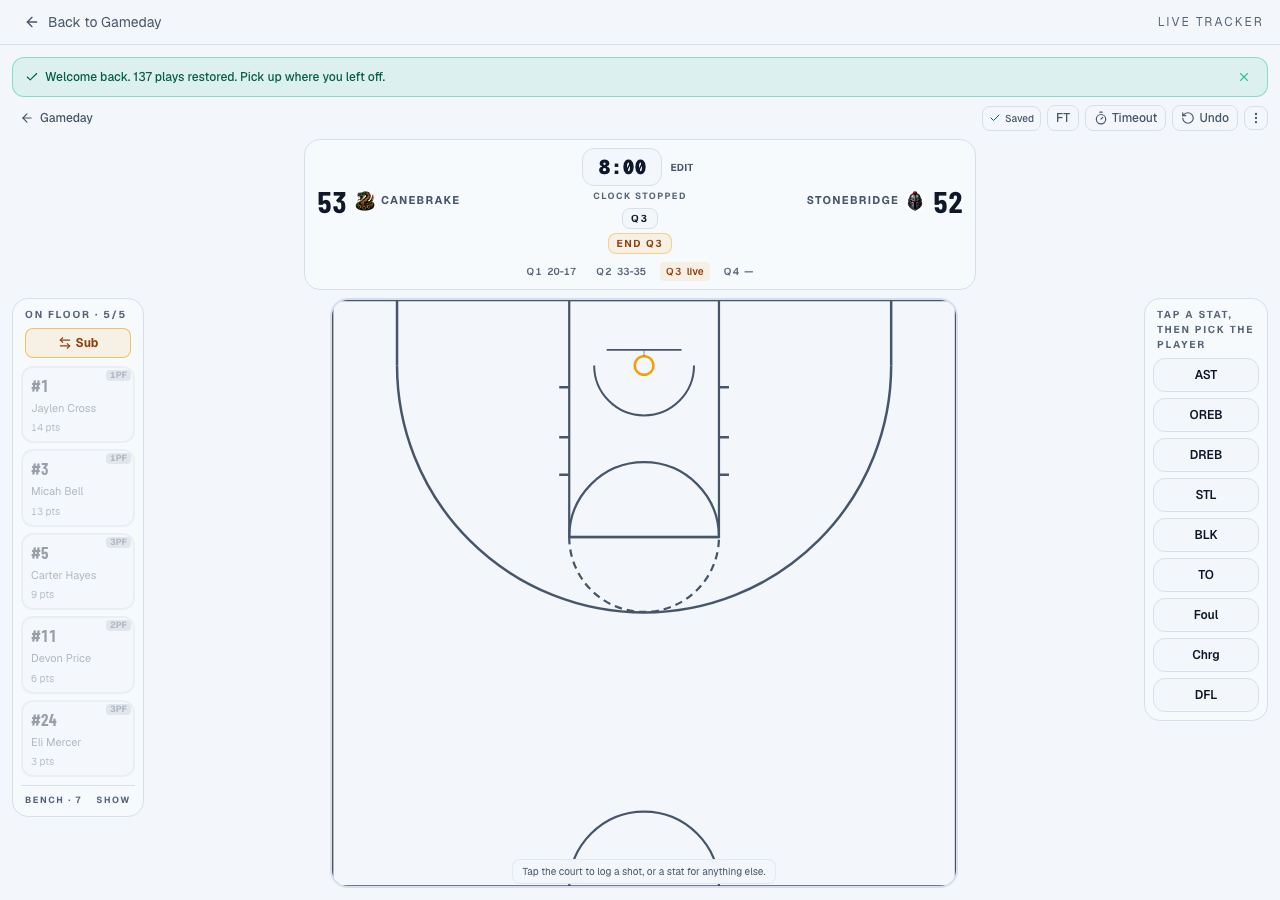
- For court-based entry, tap the shot location, choose the make/miss result, select the shooter, and complete any assist or rebound prompts. Use FT for free throws. In Sub mode, choose outgoing and incoming players, then confirm the batch.
- Use Undo last stat for the most recent mistake. For an older error, open More actions → Play log, identify the exact event, and delete/re-record it carefully. Verify the player, period, and time. Do not use a score adjustment as a substitute for fixing incorrect player stats.
Coach: check, then end
- At the final horn, stop the clock and ask every scorer to confirm their last plays are saved. Review More actions → Box score and Play log against the score and known corrections. Resolve discrepancies while the game is still editable.
- Choose More actions → End game and read the confirmation. Ending makes the game read-only and closes manager access. If the app says the last plays are not safely synced, reconnect and retry after confirming all devices are saved.
- Review the summary after ending, and use its available export controls. Find the completed game again in Gameday → History. If you discover an error afterward, use Send feedback with the game and exact issue rather than starting a replacement game.
You’re ready when: Both devices have synced, the box score has been reviewed, and the completed game is visible in History.
If you get stuck
- The manager link or PIN stopped working.
- Ask the coach for the current game link and PIN. Ending the game, closing access, or creating a new link can invalidate access. A new link also signs out existing managers, including offline devices.
- Action buttons are unavailable.
- On the manager screen, select a player first. Confirm the correct lane and that the game is still open. If the wrong roster is loaded, ask the coach to check setup.
- Our scores disagree.
- Check the matchup, pending/offline entries, and whether two people recorded the same side. Compare the play log before correcting. Do not end the game while someone still has unsynced entries.
Still stuck? Reply to your welcome email, or use Send feedback inside Ball Coach with the page, exact message, and what you were trying to do. Do not include passwords or a scoring PIN.