
Coach guides
Your first day in Ball Coach
Get your team ready and finish one useful task before exploring the rest.
For: Head coaches and assistants setting up their workspace.
Before you start: Have your staff invitation or program access, current roster, and next game handy. Use a computer or tablet for setup. On a phone, open the navigation menu to find the team switcher and account controls.
Download printable guideScreenshots use fictional demo data. Available controls depend on your role and enabled features. Select a screenshot to open it full size.
1. Start with the right team
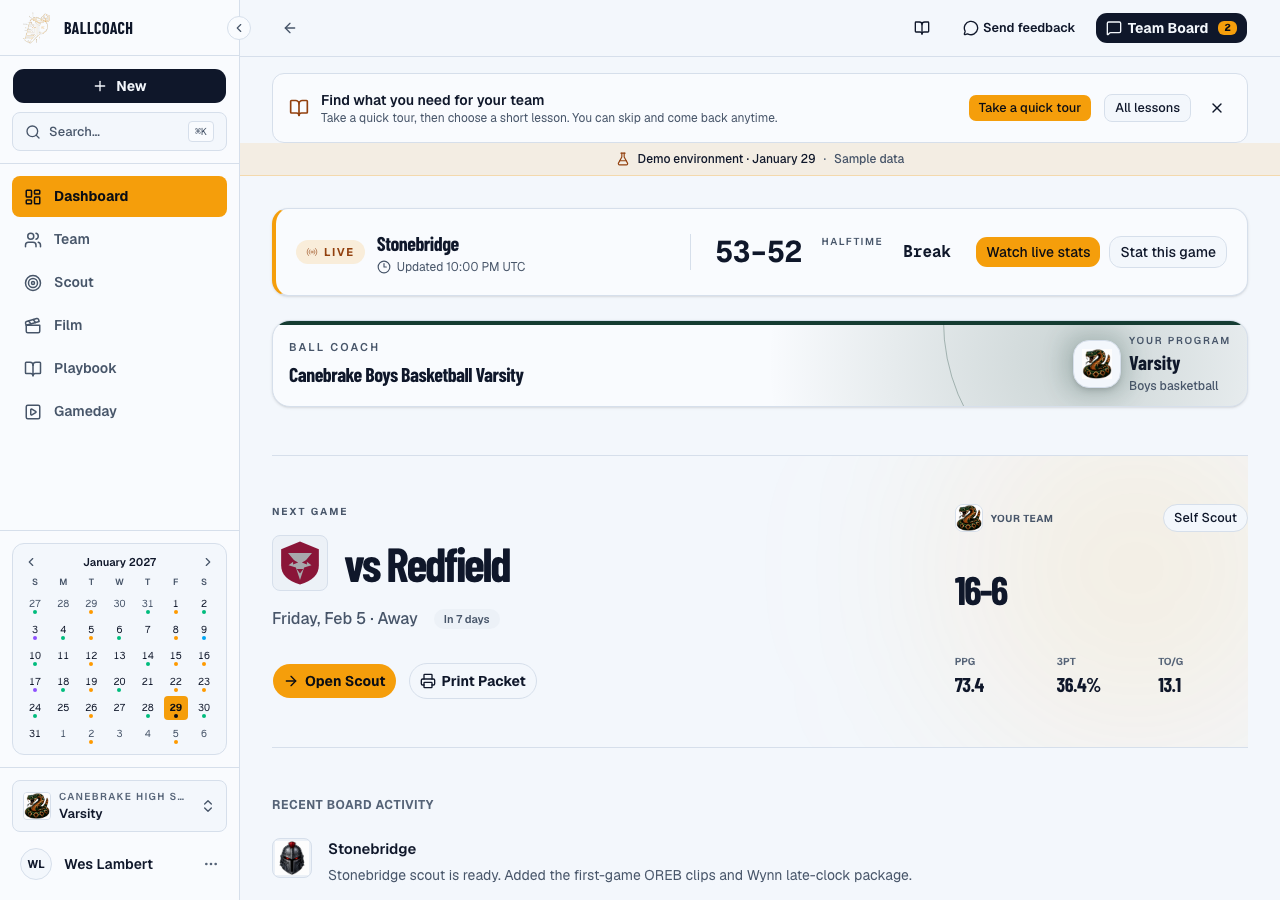
The selected team controls the roster, schedule, scouting, and playbook you see. Check it before importing or editing anything.
Join your existing program
- If a coach invited you, open that invitation and sign in with the invited email address. If you are creating the program, follow the school and team selection screens. Check school, gender, and level before confirming.
- If your program already exists but you cannot enter it, ask its administrator for access. Do not create a duplicate program to get around an invitation problem.
Confirm your working context
- Use the team switcher near the bottom of the desktop sidebar to select the correct team, such as Varsity or JV. In Settings, check the program identity and season; check any season filter on the page you are using too. The current season advances automatically each June. You can add the upcoming season in Settings. Previous years appear from your program’s saved Ball Coach history and remain available to authorized staff who join later. Past season stats are read-only; contact support for a historical import or correction.
- Open Dashboard. Review Upcoming for the next game and Full season for results. Use the schedule setup to connect MaxPreps, or add the game manually if that is the information you have. Check opponent, date, location, and whether the time is confirmed.
You’re ready when: You can name the team and season you are working in, and your next opponent appears on the schedule.
2. Check your roster and get one win
A clean roster and one finished job are a useful first session. You can add more data and features as you need them.
Check players before adding them
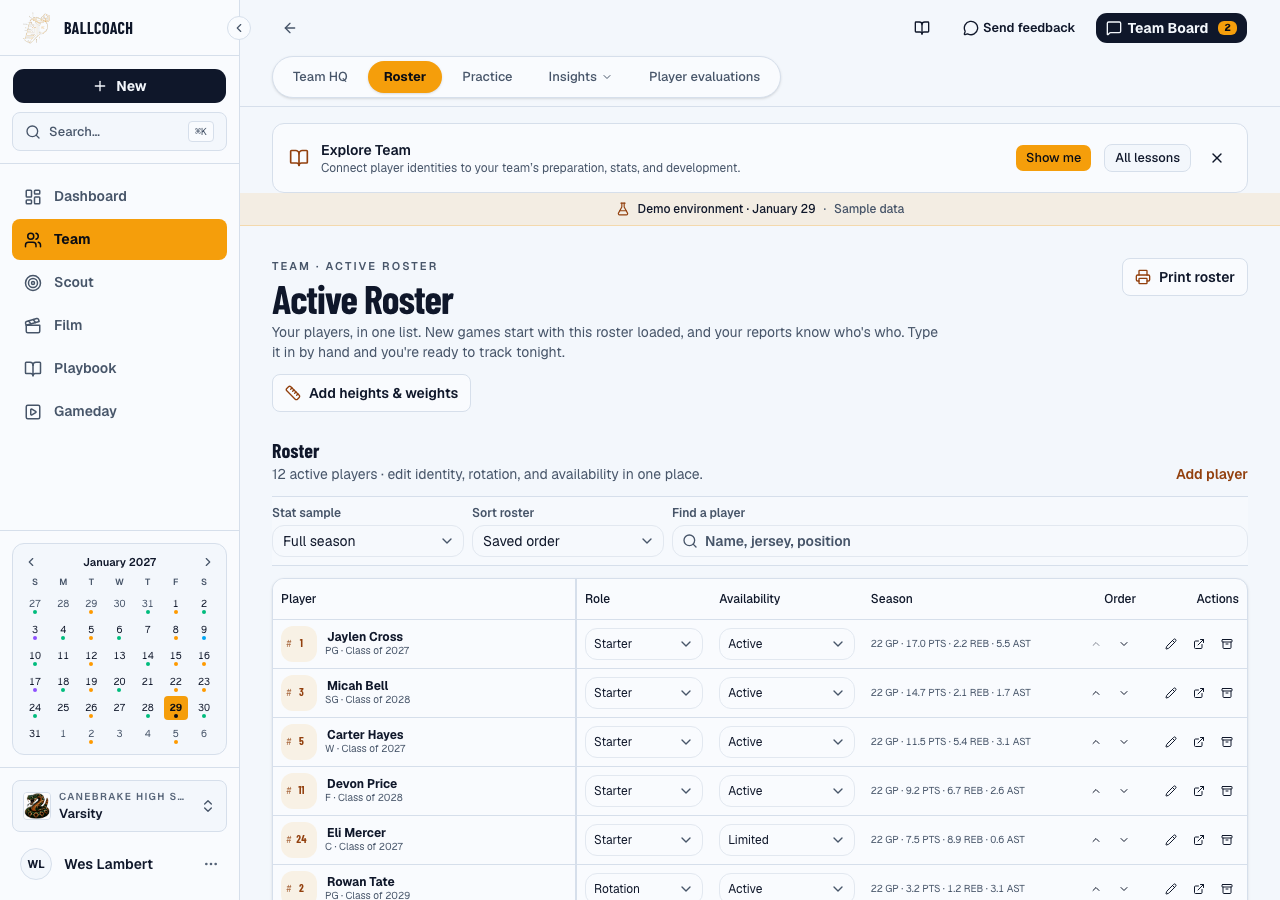
- Open Team → Roster. Check names, jersey numbers, positions, and graduation years. Search before adding a player so you do not create a second copy of someone already listed.
- Use the roster’s add-player control for missing players. Correct existing players in place; open a profile to review the identity and history. Archive players who are no longer active when appropriate, preserving their history.
Bring in your staff
- Open Settings → Staff, choose Add a coach, enter the coach’s email, and select their role and teams. Review those choices before submitting. If you cannot manage staff, ask the program administrator.
- Check the result: Invite sent means an email was sent; Invite ready may require you to share the provided link yourself. Ask the coach to accept using the invited email and confirm the right team appears. Never share your own password.
Finish one useful task
- Choose one: add a play to Team Playbook, prepare the next opponent’s scout, or check the game-night scoring setup. Use the matching guide in Help.
- Before leaving, reopen what you created and confirm it is saved. Keep a short list of missing data; you do not need every Hudl export to start using Ball Coach.
You’re ready when: Your roster is recognizable, staff access is correct, and you have reopened one saved play, scout, or game setup.
If you get stuck
- My team or a feature is missing.
- Check the selected program/team and your invitation status first. Access and feature availability vary. Ask your administrator before creating another team or account.
- The roster or schedule looks wrong.
- Check school, team level, season, and the connected source. Correct the selection before syncing again. Use manual entry when a source is unavailable; do not invent missing stats.
Still stuck? Reply to your welcome email, or use Send feedback inside Ball Coach with the page, exact message, and what you were trying to do. Do not include passwords or a scoring PIN.